QH Image Optimizer
Convert, crop, resize, and compare pictures in your browser, then download them individually or together as a ZIP.
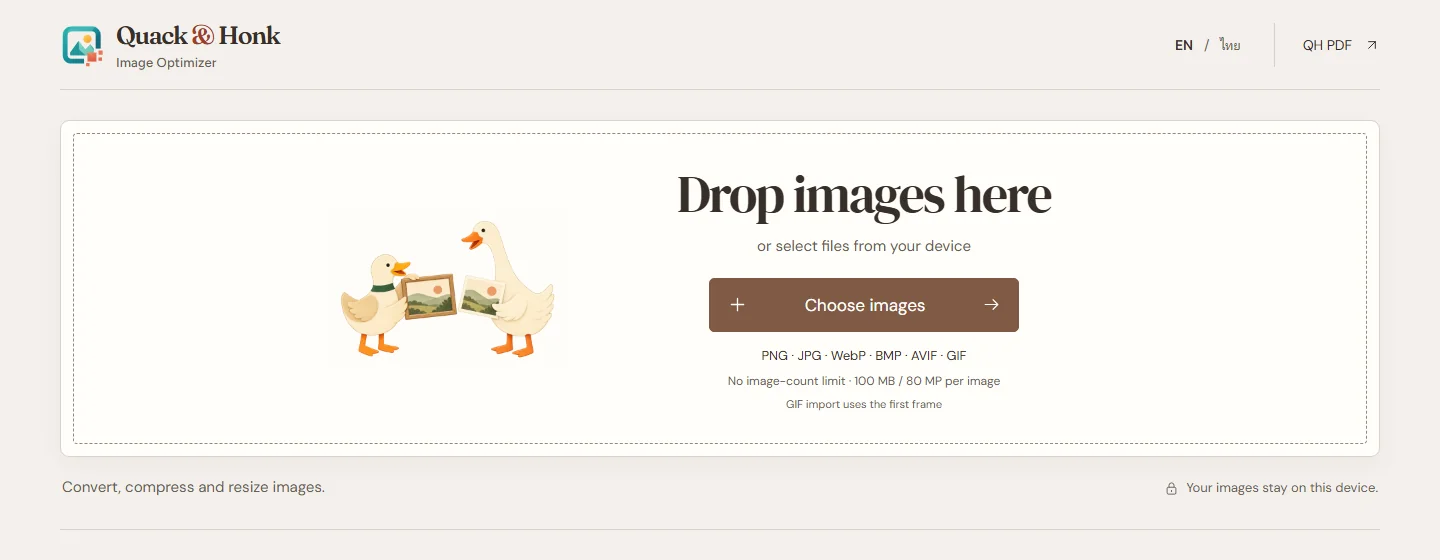
QH Image Optimizer is a browser tool for the pictures you need to share, publish, or keep. Choose an output format, crop each picture, adjust the size or quality, and compare the result with the original before downloading. The app’s interface uses the shorter name QH Image.
A little control over every picture
- Import PNG, JPEG, WebP, BMP, or GIF images, plus AVIF where your browser can decode it.
- Export PNG, JPG, WebP, BMP, or AVIF, with format-specific quality and full-color or Smart palette PNG options.
- Resize while keeping the original proportions, without enlarging the image.
- Crop each image independently before resizing, with a magnifier, keyboard controls, and exact pixel fields.
- Compare the original and converted image, then download ready results individually or in ZIP parts.
- Switch between English and Thai.
Work with your pictures locally
Image conversion runs in your browser. The current app has no image upload endpoint, account system, analytics, or remote image processing. It leaves your original files unchanged and saves only your language preference locally. Exported images do not retain the original file’s metadata.
Current limits
There is no fixed image-count or combined import-size limit; practical capacity depends on device memory. Each input image is limited to 100 MiB, 80 million pixels, and a 16,384-pixel maximum side. The resize control supports an output maximum side of 8,192 pixels and does not enlarge the source.
Animated imports require your consent to use the first frame; the app does not preserve animation. HEIC, HEIF, TIFF, and SVG imports are not supported. File size depends on the source and output settings: a converted image can be larger than the original.
Smart PNG uses a reduced palette and can change colours or partial transparency. Full-color export preserves decoded pixels, not the original file's metadata or colour profile. Compare the result before choosing it.
Design story
Begin with the picture
The starting screen puts one generous drop area ahead of the settings. After import, it becomes a compact strip above the workspace. The layout changes with the task: first bring in a picture, then decide what to do with it.
Make the tradeoffs visible
Conversion, dimensions, quality, and cropping are separate choices. A before-and-after comparison and actual output sizes let the person decide whether a smaller result is useful. The interface does not assume that every conversion saves space or that fewer colours are always acceptable.
Keep a batch manageable
Each picture keeps its own crop and result. Ready files can be downloaded independently, while larger collections can leave in ZIP parts. Processing stays in the browser, and the originals remain unchanged.
Image and source notes
Public start screen, October 2026. The file picker comes first; output settings appear after import.
Content refreshed on 7 November 2026 from the published Quack & Honk QH Image Optimizer page.
The date shown records this version's documented Quack & Honk update (2026-10-29); the project start date is not established by this source.